
Meetings & agenda
Adding a new meeting
Open Schedule a meeting, fill Details (title, deadline, time, people), then Create so Agenda and Minutes unlock.
Use this guide when you need a live meeting with Agenda and Minutes. Konsilio opens a chooser first so you pick a live Meeting instead of a Digital circular resolution.
Before you start
You need a room where you can manage meetings. Open Meetings — the header shows Filters, + New meeting, and Search by meeting title when Filters are visible.
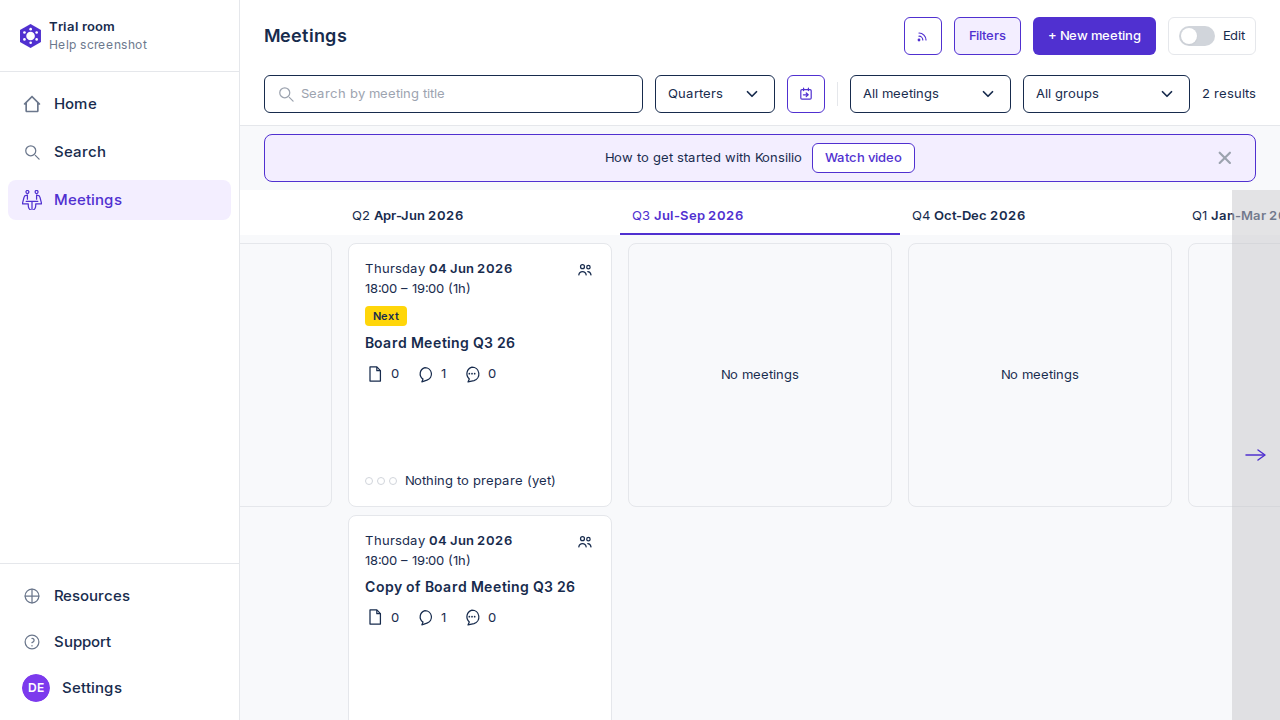
Open Schedule a meeting
Select + New meeting. Konsilio opens Schedule a meeting with two cards — Meeting and Digital circular resolution — plus Cancel.
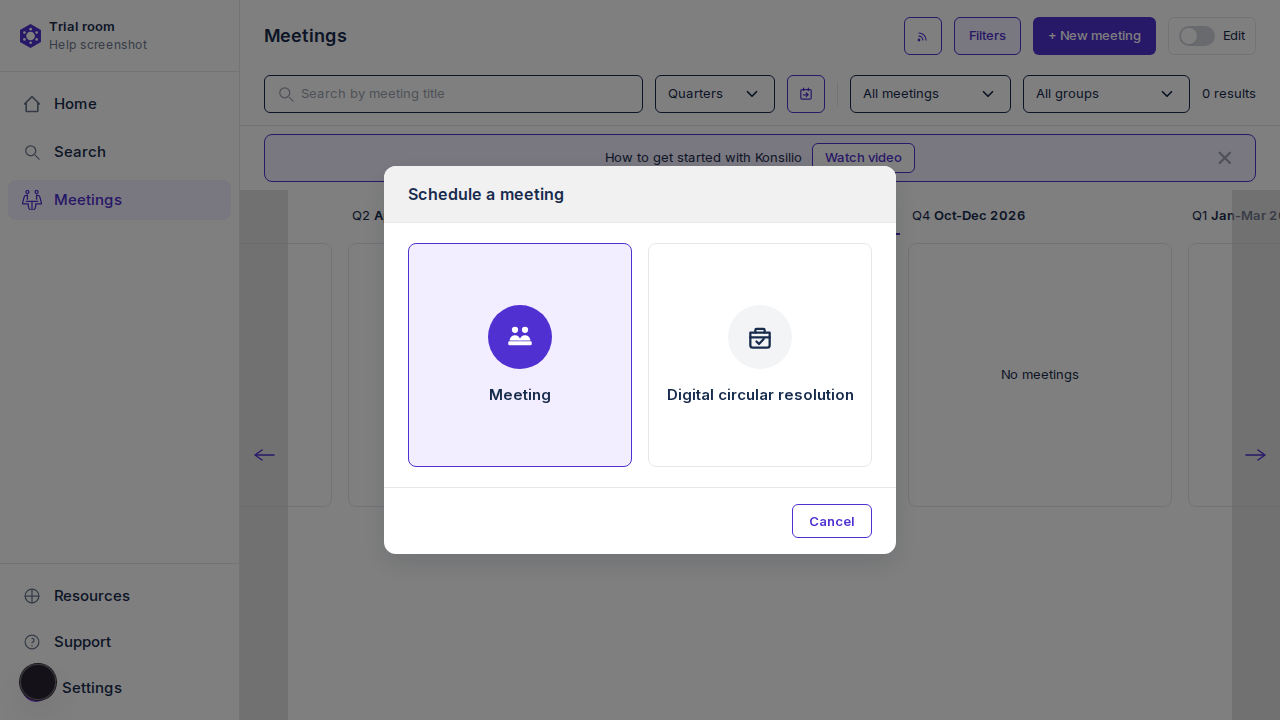
- Open the room and go to Meetings.
- Select + New meeting in the list header (or the empty-state New meeting control when Edit is on).
- In Schedule a meeting, choose the Meeting card.
- Confirm you land on the create Details page.
Fill the Details form
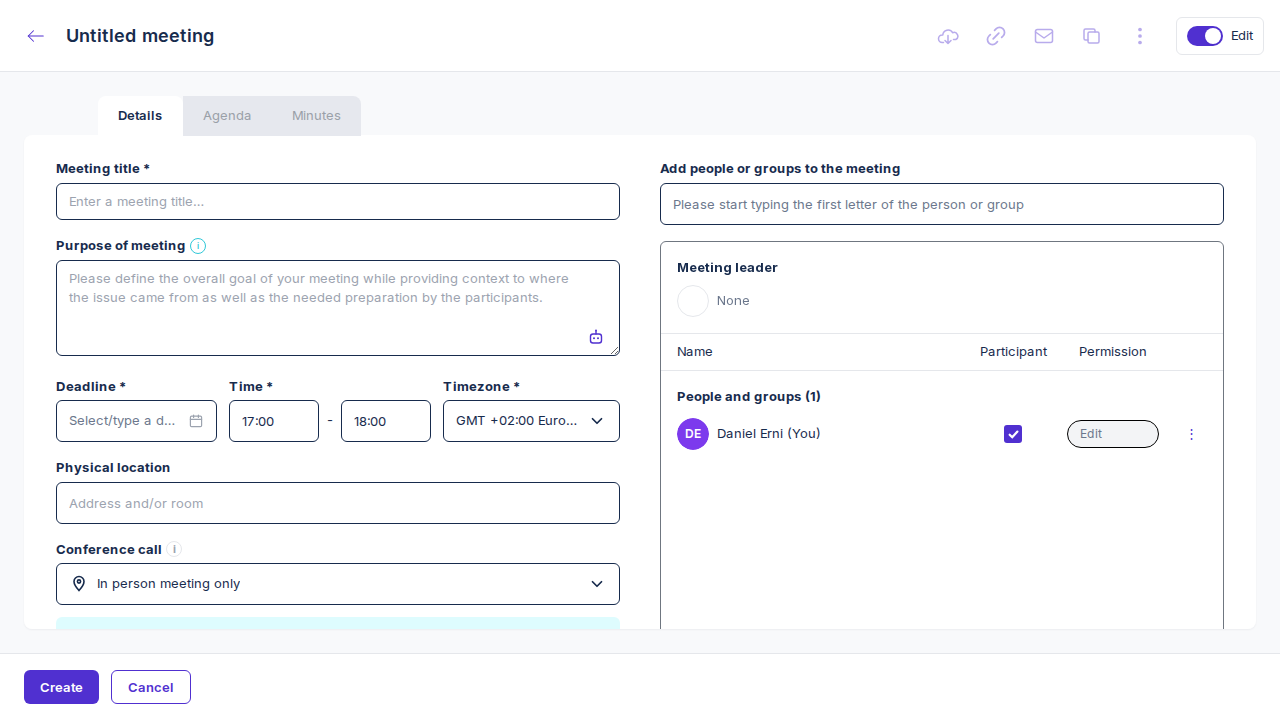
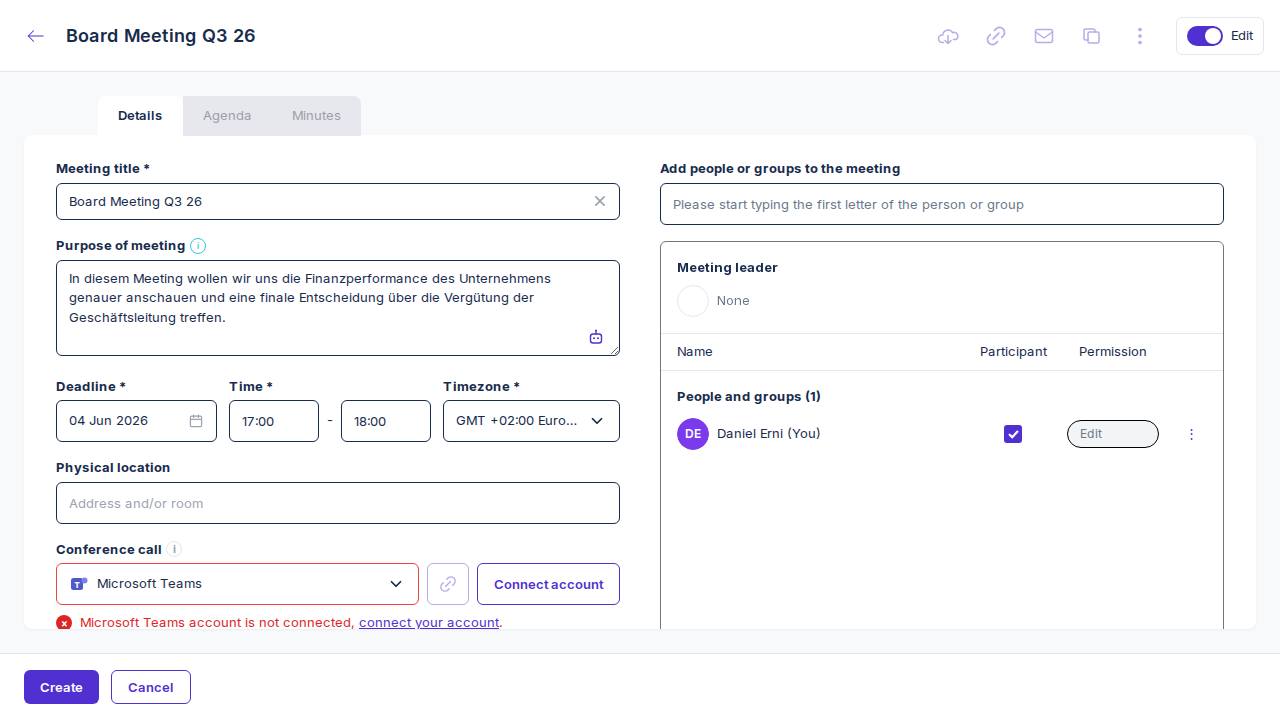
The create page is a single Details form — not a multi-step wizard. Until you save, the header shows Untitled meeting when the title is empty. Agenda and Minutes stay in the tab strip but are disabled until Create succeeds.
Meeting title and purpose
Enter Meeting title * (placeholder Enter a meeting title…) so the header no longer reads Untitled meeting. Under Purpose of meeting, describe the overall goal, where the issue came from, and what participants should prepare. Use the robot control on the purpose field for Rephrase or Translate; suggestions appear as Accept / Dismiss.
Deadline, time, and timezone
Set Deadline * from the calendar (or type a date). Set Time * with start and end times in 15-minute steps; the end menu shows durations such as 18:00 (1h). Choose Timezone * (for example GMT +02:00 Europe/Zurich). These three fields are required.
Location, conference, and invitation
Physical location is always available. Under Conference call pick Microsoft Teams, Your own conference call details, or In person meeting only (the default). Teams shows a not-connected warning when Microsoft 365 is not linked. Custom invitation expands below conference call so you can upload a PDF (max 100 MB).
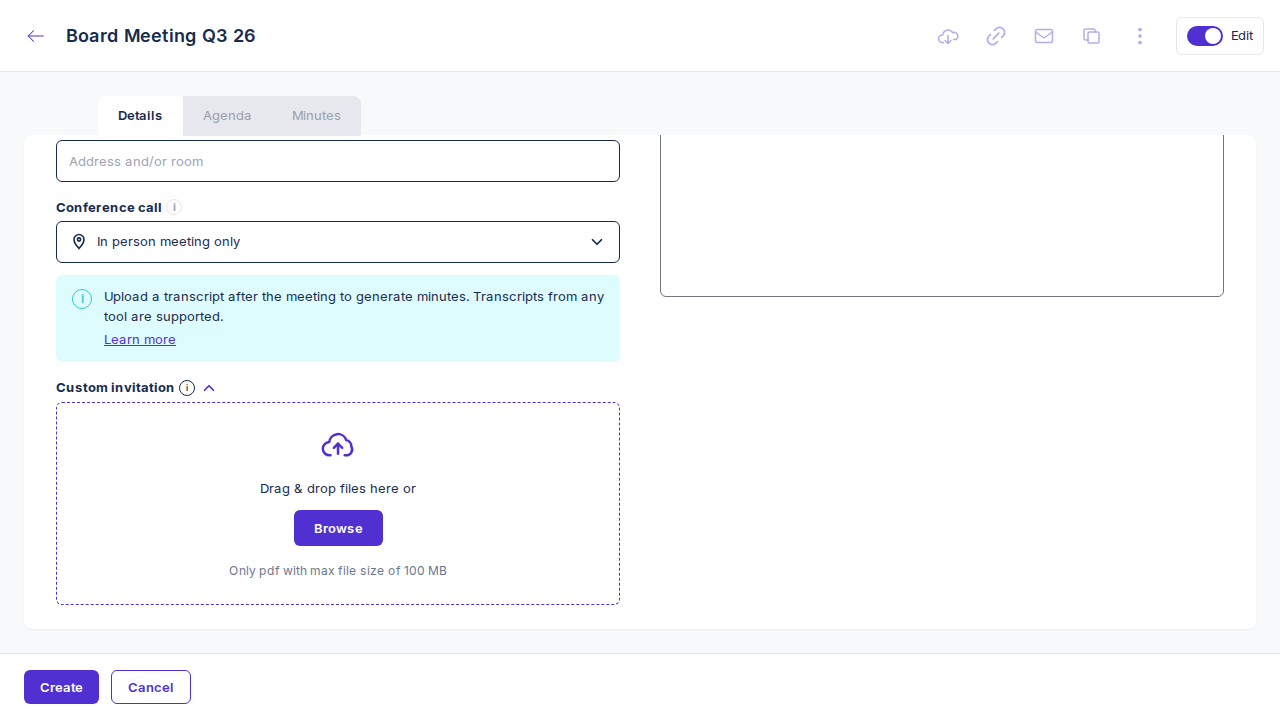
People, leader, and feedback
Use Add people or groups to the meeting and start typing a name or email. Meeting leader starts as None; assign one when ready. Feedback form appears next to the leader once a leader is set.
- Enter Meeting title * and Purpose of meeting with enough preparation context.
- Set Deadline *, Time *, and Timezone *.
- Choose Conference call (and Physical location / Custom invitation when needed).
- Add people, optionally set a meeting leader, then decide whether Feedback form is on.
Create the meeting
Use Create in the footer to persist the meeting. The button shows Creating… while the request runs. On success you remain on the meeting with Agenda and Minutes available. Cancel returns to the meetings list without creating anything.
- Review deadline, timezone, conference method, and participants.
- Select Create and wait for the meeting to save.
- Open Agenda to add items once the tabs unlock.
- Share materials when the current board pack and agenda are ready.
Common questions
Why are Agenda and Minutes disabled?
On the create Details page the meeting does not exist yet. Those tabs enable after Create persists the meeting.
Why is the date field labelled Deadline?
On the create Details form the calendar control is labelled Deadline *. It is the meeting date you pick for this session.
What if I need a circular resolution instead?
From Schedule a meeting, choose Digital circular resolution. That path uses a different create form (Title, Resolution text, Voters, Deadline) and is not the same as a live Meeting.
Why is Create disabled?
Create stays unavailable until required fields are filled — Meeting title, Deadline, Time, and Timezone. Fix those first, then try again.
Was this page helpful?